Shared data insights
You can make data insights available to other users and teams. This makes it easy to share an automatic overview—for example of open work requests or inspections—with a selected technician.
For a user to view a shared data insight, you must first set permissions for their role. Viewing a data insight requires permission for the Reporting module and permission to view the underlying data from the data source the data insight uses. When displayed, the user's context (localities or asset groups) assigned to that role is also respected.
Example: A data insight that shows an asset aggregation is visible only to users who have permission to view Assets. Each user also sees statistics only for assets they normally have access to in the Facilities module.
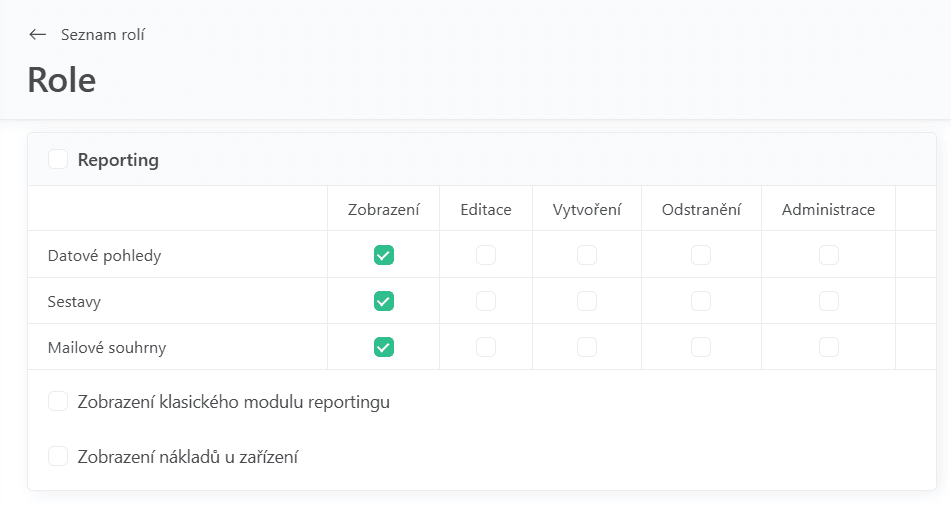
You can set permissions for data insights in Settings/Roles/Reporting, where you can choose whether a role can only view data insights without being able to edit them.
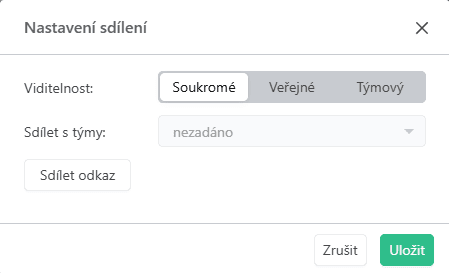
In the data insight detail, click "Sharing" in the upper-right corner. Here you can set who can see the data insight:
- Private – only the owner can see the view.
- Public – all users with permission to view data insights can see it. Data visibility is still limited by each user's permissions (see above).
- Team – only members of the selected teams, the data insight administrator, and the owner can see it. Data visibility is still limited by each user's permissions (see above).
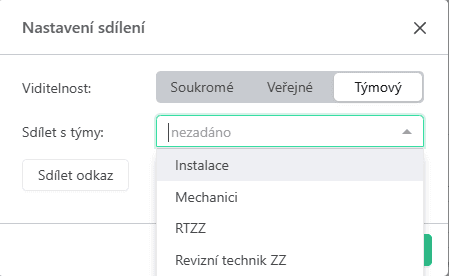
Choose whether you want to Share with teams. If no team is selected, the data insight is shown to all users who have permission to access data insights. You can copy the sharing link or send it through an app with Share link. Click "Save" to save the sharing settings.
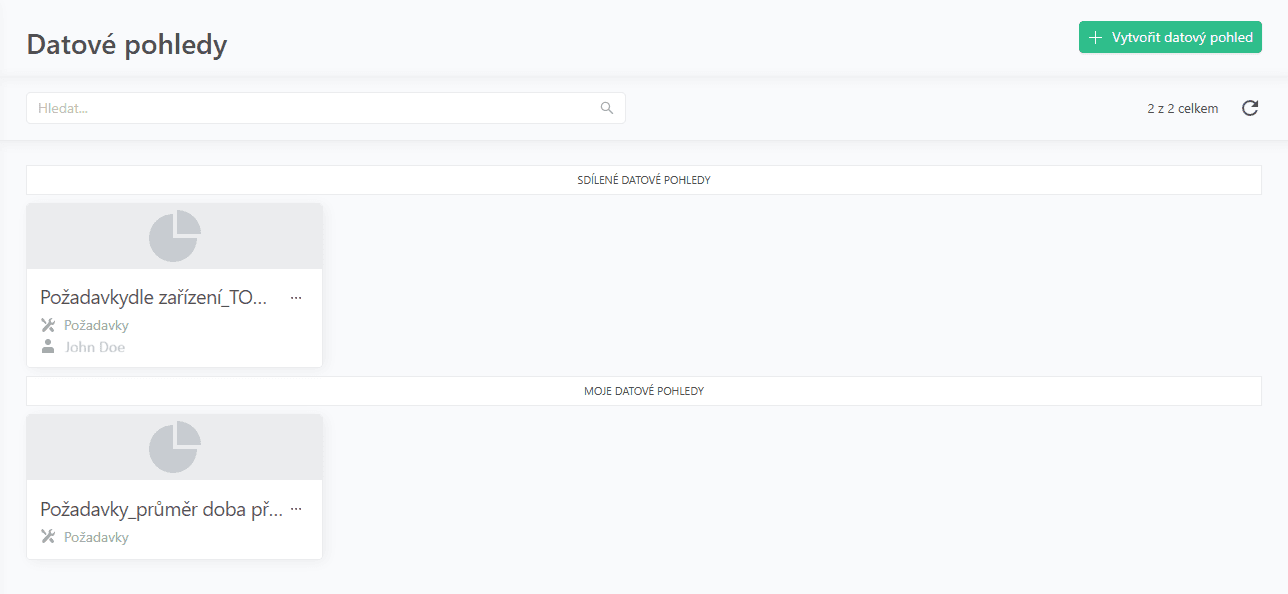
In the data insights overview, you will see a split between shared data insights and your own. A shared view appears for other authorized users when they open the app in Analytics & reports/Data insights.
How do I configure charts?
In data insights, you have several options for customizing how charts are displayed—chart type, color palette, labels, and limiting results.
How do I configure a summary metric?
If you want a summary number on the dashboard—for example the total number of assets in a locality or building that do not have completed inspections—you can create a data insight of type "Metric".