How do I configure a summary metric?
If you want a summary number on the dashboard—for example the total number of assets in a locality or building that do not have completed inspections—you can create a data insight of type "Metric".
You can configure a metric using a custom filter without choosing grouping.
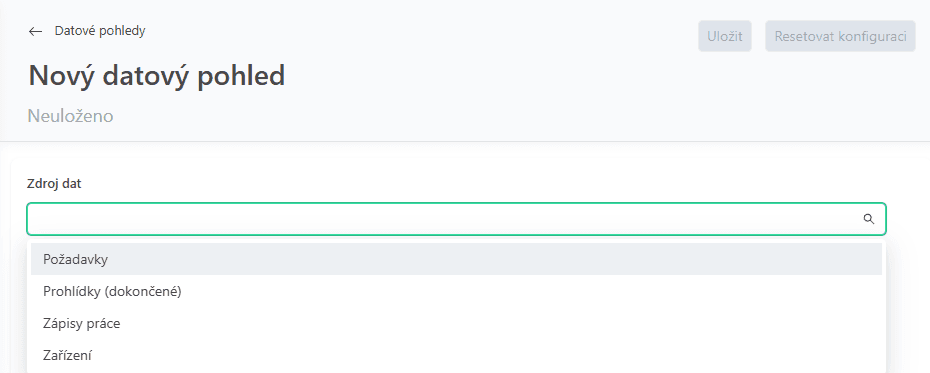
In Analytics & reports/Data insights, choose + Create data insight and select which data the view should be built from. In our example, we chose the Assets data source.
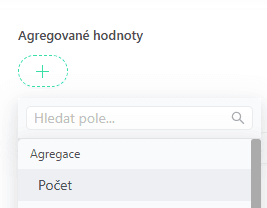
Next, choose an aggregated value; we will choose Count.
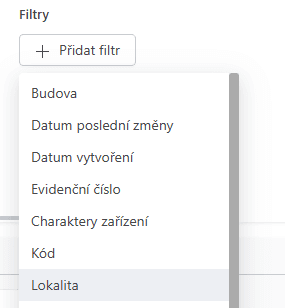
In the next step, choose + Add filter. For our metric, we will select Locality and Maintenance status.
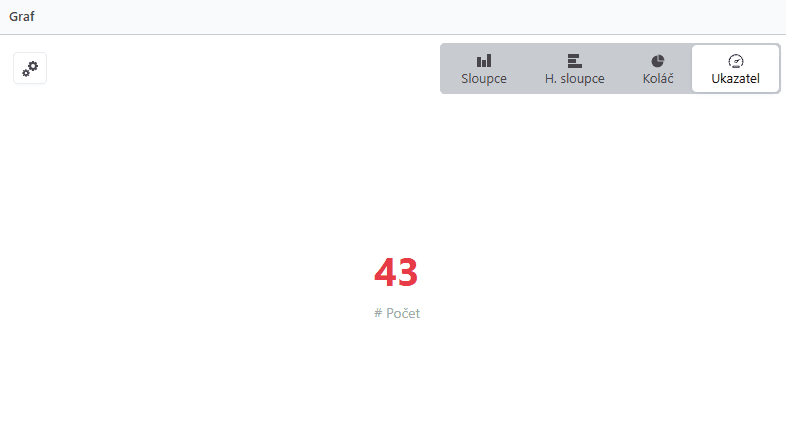
The chart then shows the "Metric" option. Save the data insight and the summary number is ready to add to the dashboard. See How do I add a data insight to the dashboard? for more.
Shared data insights
You can make data insights available to other users and teams. This makes it easy to share an automatic overview—for example of open work requests or inspections—with a selected technician.
How do I add a data insight to the dashboard?
For a quick overview of asset and maintenance status and other key metrics, you can add data insights directly to the home dashboard.